ArcisAI Mobile App Support Guide: Setup, Monitoring & Remote Access
Kushal Sanghvi
Updated●June 10, 2026
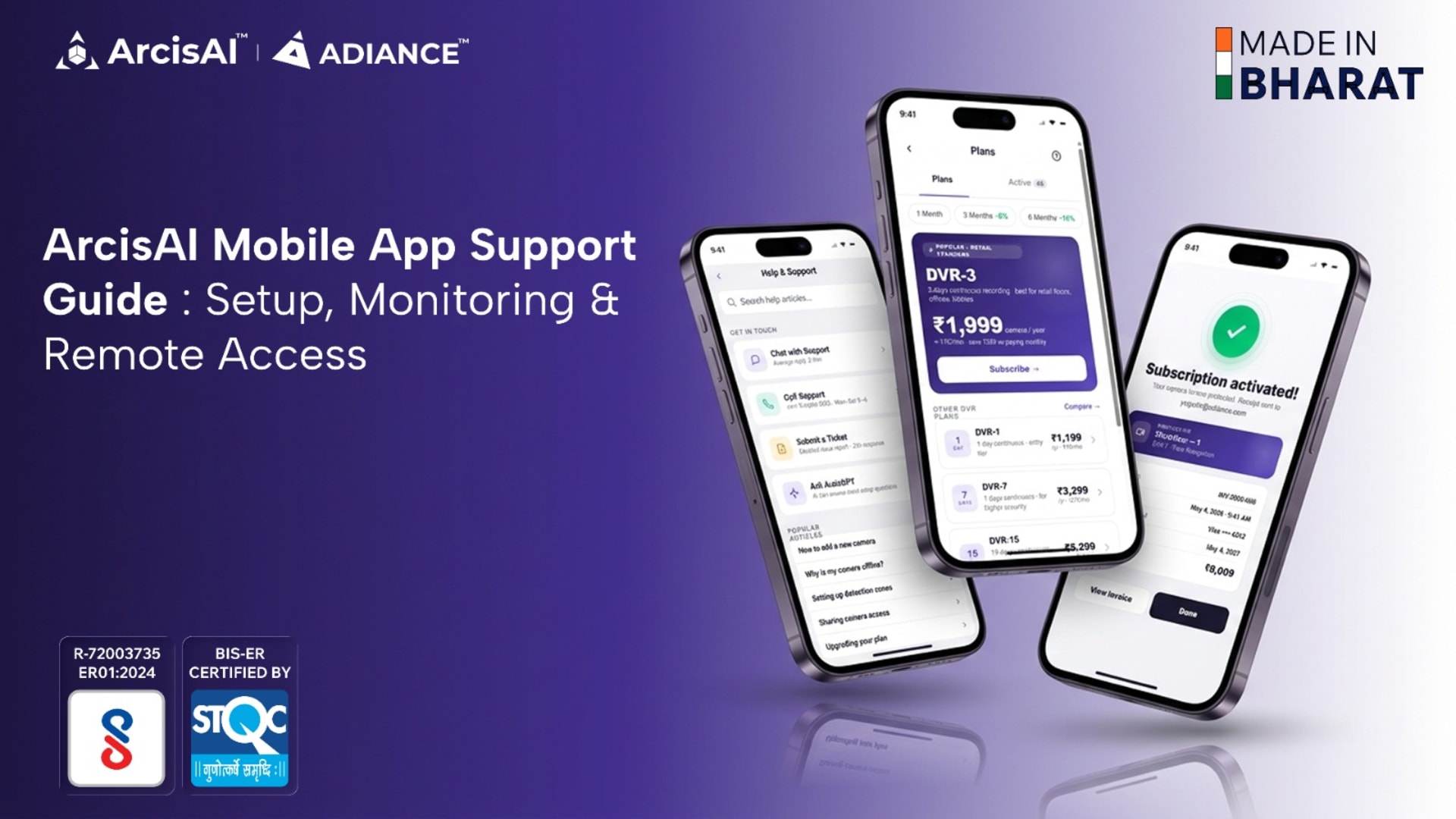
The ArcisAI Mobile App is designed to provide users with complete access to their surveillance systems from anywhere, at any time. Whether you are monitoring a warehouse, office, manufacturing facility, retail store, residential property, or multiple locations, the application enables real-time monitoring, intelligent alerts, AI-powered analytics, device management, reporting, and support services through a single platform.
This support guide explains the key features of the ArcisAI Mobile App and helps users understand how to effectively use the application for daily surveillance operations.
Table of Contents
Dashboard: Your Surveillance Control Center
Notifications & Security Alerts
Camera Management
Wi-Fi & Device Configuration
Live View & Remote Monitoring
PTZ Camera Controls
Playback & Video Review
AI-Powered Surveillance Features
Camera Settings & Video Optimization
Reports & Analytics
ArcisAI Assistant
Help & Support Center
Account Settings & Personalization
Troubleshooting Tips
Conclusion
Dashboard: Your Surveillance Control Center
The Dashboard is the first screen users see after logging in and serves as the central hub of the ArcisAI Mobile App.
It provides a quick overview of your entire surveillance environment and allows users to access important functions without navigating through multiple screens.
Dashboard Features
Profile Section: View account information and access user settings.
Notification Center: Receive alerts related to security events, AI detections, and system activities.
Camera Status: Display the total number of registered cameras along with online and offline device statistics.
AI Coverage: Show how many cameras are actively utilizing ArcisAI intelligence services.
Recent Alerts: Provide quick visibility into the latest security events and camera notifications.
Shared Cameras: Display cameras that have been shared with the logged-in user.
Quick Access Actions: Provide shortcuts to frequently used features such as Camera Management, Reports, Notifications, and Live Monitoring.
The dashboard helps users quickly assess the overall health and activity of their surveillance system from a single location.
Notifications & Security Alerts
The ArcisAI Mobile App delivers real-time notifications whenever important security events occur.
Notifications are categorized to help users identify the source of each alert more efficiently.
Notification Categories
All Notifications: Display every event generated by the surveillance system.
Edge AI Notifications: Show alerts generated directly by AI-enabled cameras.
Cloud AI Notifications: Display events processed through ArcisAI cloud analytics services.
Notification Information
Each notification includes:
- Camera Name
- Event Type
- Event Timestamp
- Detection Source
- Snapshot Preview
This information enables users to quickly review incidents and determine whether immediate action is required.
Camera Management
The Camera section allows users to manage all surveillance devices connected to their account.
Users can organize cameras, configure settings, share access, and monitor device status from a single interface.
Camera Management Features
Add Camera: Register and connect new cameras to the ArcisAI platform.
Search Camera: Quickly locate devices using camera names or keywords.
Camera Groups: Organize multiple cameras into logical groups for easier management.
Shared Cameras: Access cameras shared by other authorized users.
Camera Information: View device details including camera name, model, status, and connectivity information.
Edit Camera Details: Rename cameras and update device information.
Remove Camera: Remove unused devices from the platform.
Camera Sharing
The ArcisAI platform supports secure camera sharing.
Grant Access: Share cameras with other authorized users.
Permission Management: Define what actions shared users can perform.
Modify Access Rights: Update user permissions whenever required.
Revoke Access: Remove shared access instantly.
This feature is especially useful for organizations that require multiple users to monitor the same location.
Wi-Fi & Device Configuration
Network configuration can be managed directly through the application.
Configuration Features
Wi-Fi Setup: Configure wireless settings for supported devices.
QR Code Configuration: Connect cameras using QR-based onboarding methods.
Network Information: View connection details and network status.
Signal Monitoring: Monitor Wi-Fi signal strength and connection quality.
Device Diagnostics: Access device-level diagnostic information for troubleshooting.
These tools help users ensure stable camera connectivity and reliable performance.
Live View & Remote Monitoring
Live View allows users to monitor connected cameras in real time from anywhere.
The interface provides powerful controls that enable active surveillance management.
Live View Features
Live Stream: View real-time video feeds from connected cameras.
Full Screen Mode: Expand video feeds for a larger viewing experience.
Snapshot: Capture and save images directly from the live feed.
Manual Recording: Record video manually whenever required.
Playback Shortcut: Access recorded footage directly from the live view screen.
Digital Zoom: Zoom into specific areas for closer inspection.
Two-Way Audio: Communicate through supported cameras using built-in microphones and speakers.
These tools allow users to monitor activities and respond to incidents instantly.
PTZ Camera Controls
For PTZ-enabled cameras, ArcisAI provides advanced remote control functionality.
PTZ Features
Pan Control: Move the camera horizontally.
Tilt Control: Adjust the camera vertically.
Zoom Control: Magnify distant objects for detailed viewing.
Preset Positions: Save frequently used viewing angles.
Patrol Mode: Automatically move between predefined camera positions.
Tracking Mode: Follow moving subjects automatically.
These capabilities provide improved coverage and monitoring flexibility for larger areas.
Playback & Video Review
The Playback section allows users to review recorded footage without accessing the recorder physically.
Playback Features
Date Search: Locate recordings based on specific dates.
Time Search: Jump directly to selected time periods.
Video Playback: Review recorded events and activities.
Pause & Resume: Control video playback during investigations.
Download Clips: Save important recordings for future reference.
Playback helps users investigate incidents, review activities, and collect evidence when required.
AI-Powered Surveillance Features
ArcisAI enhances surveillance through intelligent analytics that help users focus on important events.
Motion Detection
Motion Detection: Generate alerts whenever movement is detected within the camera view.
Human Detection
Human Detection: Identify human activity while reducing false alarms caused by environmental changes.
Tamper Detection
Tamper Detection: Notify users when cameras are blocked, moved, damaged, or interfered with.
ArcisAI Intelligence Features
Action Tracking: Identify and track specific actions within monitored areas.
Object Recognition: Detect and classify objects automatically.
Person Recognition: Recognize individuals using AI-powered analysis.
Video Summarization: Generate summarized insights from surveillance footage.
These intelligent capabilities transform traditional video surveillance into proactive security management.
Camera Settings & Video Optimization
The ArcisAI Mobile App allows users to optimize camera performance based on operational requirements.
Video Configuration
Resolution Settings: Adjust video resolution quality.
Frame Rate Settings: Configure frames per second for smoother video.
Bit Rate Settings: Control bandwidth and storage usage.
Audio Settings: Manage audio recording and communication features.
Recording Settings: Configure recording preferences.
Image Optimization
Day Mode: Optimize image quality during daylight conditions.
Night Mode: Improve visibility in low-light environments.
Infrared Mode: Enable infrared-based night monitoring.
Smart Mode: Automatically switch between image profiles based on lighting conditions.
Device Management
Remote Reboot: Restart cameras remotely.
Motion Recording: Record only when motion is detected.
Streaming Settings: Configure live streaming preferences.
These settings help users maximize image quality and surveillance performance.
Reports & Analytics
The Reports section converts surveillance data into meaningful insights.
Users can generate reports based on cameras, event types, and selected date ranges.
Report Features
Download Icon: Download reports in PDF or Excel format for auditing, sharing, and record-keeping purposes.
Grid View: Display event statistics in a card-based summary format.
List View (Event Log): Show events in a detailed list with timestamps, event information, snapshots, and video previews.
Chart View: Visualize surveillance activity through charts and graphs.
Activity Heatmap: Identify peak activity periods across monitored locations.
Top Cameras Analysis: Highlight cameras generating the highest number of events.
Event Breakdown: Categorize events by detection type.
Anomaly Detection: Identify unusual activity patterns that may require attention.
These analytics help organizations improve operational awareness and security planning.
ArcisAI Assistant
The ArcisAI Assistant acts as an intelligent surveillance companion built directly into the application.
Users can interact with the system using natural language questions.
Example Queries
- Show recent activity.
- Give me a summary of all cameras.
- Which camera generated the most alerts today?
- Was any unusual activity detected?
- Show today's AI events.
The assistant helps users access information faster without manually searching through reports and recordings.
Help & Support Center
The ArcisAI Mobile App includes a dedicated support section to help users resolve issues efficiently.
Support Features
FAQs: Access answers to common questions.
Knowledge Base: Search support articles and documentation.
Create Ticket: Raise support requests directly from the application.
Ticket History: View previously submitted requests.
Ticket Status: Monitor support progress in real time.
Support Communication: Interact directly with support representatives.
Ticket Creation Process
Step 1: Select the support category.
Step 2: Describe the issue in detail.
Step 3: Select affected cameras or devices.
Step 4: Submit diagnostic information and create the ticket.
Automatic Diagnostics
Before ticket submission, the application performs automated diagnostics to help identify potential device issues.
This reduces troubleshooting time and improves support efficiency.
Account Settings & Personalization
The ArcisAI Mobile App allows users to customize their experience while maintaining account security.
Available Options
Profile Management: Update personal account information.
Theme Settings: Switch between Light Mode, Dark Mode, and System Mode.
App Tour: Restart the application walkthrough at any time.
Privacy Policy: Review privacy and data usage policies.
Terms of Service: Access platform terms and conditions.
Warranty Information: View product warranty details.
Account Preferences: Manage application settings and preferences.
Troubleshooting Tips
If a camera appears offline or video is unavailable:
- Verify internet connectivity.
- Check camera power status.
- Confirm Wi-Fi settings.
- Review network diagnostics.
- Restart the camera remotely.
- Refresh the application.
If the issue persists, submit a support ticket through the Help & Support section.
Conclusion
The ArcisAI Mobile App is a complete surveillance management platform that combines live monitoring, intelligent notifications, AI-powered analytics, remote device management, advanced reporting, and integrated support services into a single application.
Whether managing a single location or multiple sites, users can monitor security operations, review events, generate reports, configure devices, and receive assistance directly from their mobile devices.
With powerful monitoring tools, intelligent AI capabilities, and a dedicated support ecosystem, ArcisAI helps organizations maintain better visibility, improve operational efficiency, and stay connected to their security infrastructure anytime, anywhere.
Table of Contents
Dashboard: Your Surveillance Control Center
Notifications & Security Alerts
Camera Management
Wi-Fi & Device Configuration
Live View & Remote Monitoring
PTZ Camera Controls
Playback & Video Review
AI-Powered Surveillance Features
Camera Settings & Video Optimization
Reports & Analytics
ArcisAI Assistant
Help & Support Center
Account Settings & Personalization
Troubleshooting Tips
Conclusion
Send Us a Message